The twelve steps
- 01Set up the agent services account
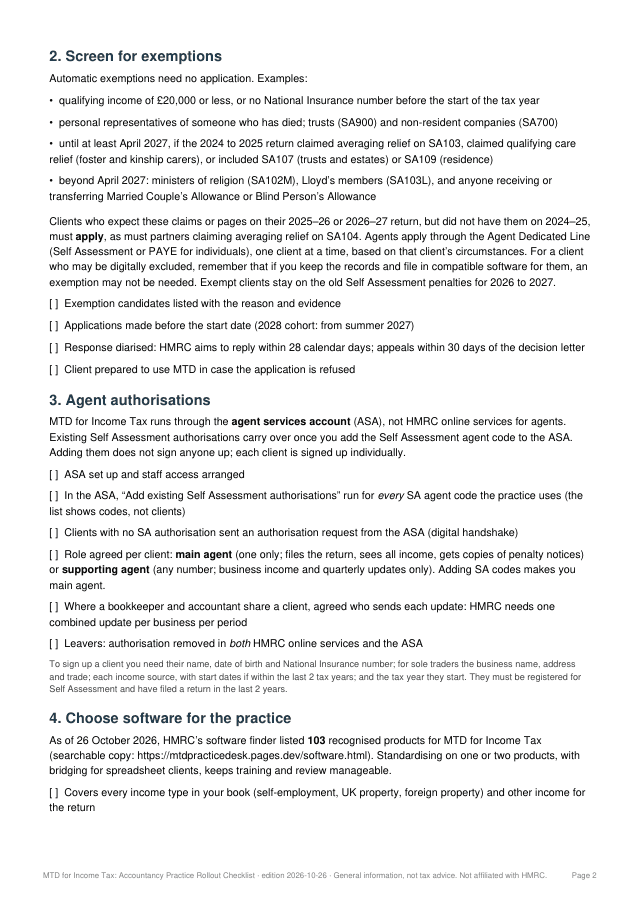
MTD for Income Tax needs an agent services account (ASA). Existing Self Assessment authorisations are recognised, but must be copied into the ASA. GOV.UK
- 02Segment the client list
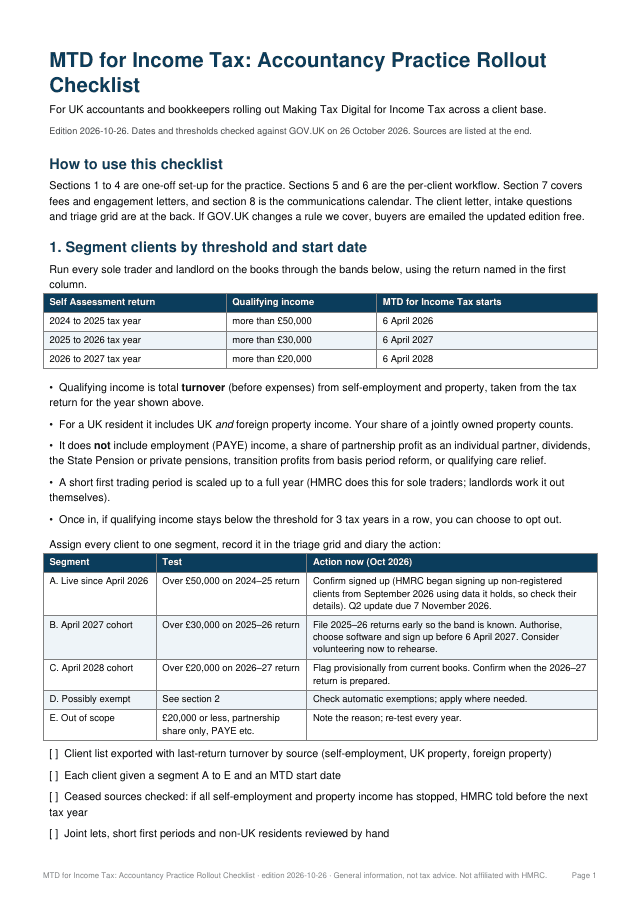
Sort clients by qualifying income (turnover, not profit) from their 2024 to 2025 and 2025 to 2026 returns: in now, 6 April 2027, 6 April 2028, or exempt. GOV.UK
- 03Screen for exemptions
£20,000 or less is automatically exempt; other automatic exemptions and applications (for example digitally excluded) are on GOV.UK. GOV.UK
- 04Check who HMRC already signed up
From September 2026 HMRC began signing up anyone who needed MTD for 2026 to 2027 and had not signed up. Reconcile your list against HMRC’s. GOV.UK
- 05Agree main or supporting agent
Only the main agent can submit the client’s tax return through MTD. Settle roles where a client has more than one adviser. GOV.UK
- 06Choose and standardise software
One product per submission. Check income types, both submission types, multi-agent support, HMRC Assist and accounting-period support. GOV.UK
- 07Confirm sign-up conditions
The client must be registered for Self Assessment and have filed a return in the last 2 years. Each client is signed up individually. GOV.UK
- 08Pick standard or calendar periods
Calendar periods (1 April start) must be chosen in software before the first update and are fixed for that year once an update is sent. GOV.UK
- 09Set up digital records and links
Each transaction needs amount, date and category. Products used together must be digitally linked; no copy and paste once an update has been sent. GOV.UK
- 10Build the quarterly timetable
Work back from 7 August, 7 November, 7 February and 7 May: chase records, review, send. Updates are cumulative and nil updates still count. GOV.UK
- 11Brief clients on penalties
No points for late quarterly updates in 2026 to 2027; from 2027 to 2028, 4 points means £200. Late returns still earn points. GOV.UK
- 12Update fees and engagement letters
Quarterly work is new recurring work. Price it and add it to the engagement letter before the first quarter, not after. (practice view, not a GOV.UK rule)
Want this as a printable working document?
The Practice Rollout Checklist expands these steps into 55 tick-box checks across 6 A4 pages, with the A to E segmentation grid, nine engagement-letter clauses, a client letter template, five intake questions and a triage grid.
The checklist gets clients signed up. QuarterClose gets their records in, every quarter.
QuarterClose chases each sole trader and landlord client against their own quarter, with reminders 14 days and 3 days before the 7th. Clients reply with a photo, PDF or voice note and never get a login. You approve every line, then file in the MTD software you already use.
Sources (GOV.UK, checked 27 Oct 2026)
Common questions
What do accountants need to do to prepare for MTD for Income Tax?
Set up an agent services account, segment clients by qualifying income, screen exemptions, agree main or supporting agent roles, choose software, sign each client up, set update periods and digital records, and build a quarterly timetable.
Can a supporting agent submit the MTD tax return?
No. GOV.UK says you can only submit a client’s tax return using MTD for Income Tax if you are their main agent.
Do existing Self Assessment authorisations carry over to MTD?
They are recognised, but must be in your agent services account, and each client still has to be signed up individually.